Archive for November 5, 2009

Best Free Services For Those Who Enjoy Videos

As the number of videos become more and more, it becomes more important for you to be able to organize it better, share them with your friends easily, ably to convert to different formats etc. In this post we cover some innovative video players that will help you to play different formats, share online videos, organize them or even watch a online TV show. The services listed below are the ones any one playing with videos must gets their hands to enjoy their viewing

Video_thumb

1. DVD Flick

DVD Flick is a simple but a powerful DVD Authoring tool. It can take in a number of video files that are stored on your computer and turn them into a DVD that will play back on your DVD player, Media Center or Home Cinema Set. It lets you to add additional custom audio tracks, subtitles as well as a menu for easier navigation.

Features:

  • Burn any video file to DVD
  • Supports over 45 file formats
  • Supports over 60 video codecs
  • Supports over 40 audio codecs
  • Easily add a menu
  • Add your own subtitles
  • Easy to use interface
  • Burn your project to disc after encoding
  • Completely free
  • Does not have any adware, spyware or limitations

Download the software here.

2. Embedr

Very rarely you would find a free service that would let you build a video play list. Embedr is a great service that lets anyone create a custom playlist of videos from the top video sites on the web like YouTube, MySpace, Vimeo, DailyMotion and more.

You can create a play list of 100 videos and embed multiple videos in you blog or any other website without having to do too much of work. Embedr does not host videos but it lets you fetch them from popular video services like YouTube, MySpace Video, DailyMotion, MetaCafe, Veoh, Vimeo, Blip.tv and more. Now get on to Embedr and start creating your playlist.

3. HandBrake

There are lots of video encoders/transcoders available on the internet and most of them are either not up to the mark or quite complex to start with. But, here is a great Open Source project that will just so this right! HandBrake is a free and open source software that is cross platform (works on Windows/Linux as well as Mac OS) video transcoder and it is great!

Check out more features on HandBrake here.

4. KickYouTube

It’s a cool service for those who have been yearning to download a YouTube video easily and carry with their cell phone, iPod, or PSP, or just to save on their PC.

This free online service converts YouTube videos to literally any device-friendly format, on the fly. All you have to do is add the word kick to the front of any YouTube URL. What a cool way to download video! Get on to KickYouTube and try it yourself.

5. Splicd

There may be so many times we have shared YouTube videos and asked them to watch from the beginning just to show then something at the 10th minute. well not anymore. Splicd lets to link straight to the good part when you share YouTube videos. You just need to specify the YouTube link and the “from” and “to” time. So get to Splicd get the link straight to the good part of the video you want to share.

6. Tv.com

Hulu was once upon a time the best video service. But now Tv.com is giving a tough competition. It is the best source for free videos, show and episode info. Its a great site where you can watch full videos. Recently it has introduced HD Videos. Get on to Tv.com and check it out yourself.

Miro, VLC and MPlayer are the three open source video players that plays any format. If you are tired of looking for video players trying to play a particular video format, then try one of these three video players.

QuickTime Alternative and RealPlayer Alternative

QuickTime Alternative


Running bloated QuickTime is one of the most painful moment! Most of the people really get annoyed when they have to use QuickTime. If you are one among them, then probably you can try some of the alternate ways to run QuickTime files. image

  • How do you make your Windows Media Player run QuickTime Files?

If you want your Windows Media Player or any other DirectShow based player to play QuickTime files, then you need to download K-Lite Codec Pack from here.

OR

  • Use QuickTime Alternative – QT Lite

QT Lite - QT Lite is a trimmed down version of QuickTime that contains only the essential components needed for playing QuickTime content that is embedded in web pages.

Advantages of QT Lite are:

  • Quick and easy install
  • Ability to make an unattended installation
  • No background processes
  • No unwanted stuff and other nonsense
  • Smaller size

Qith QT Lite, Media Player Classic can also play QuickTime files.


Download QT Lite here.

RealPlayer Alternative

RealPlayer is another such bloated program that most people don’t like to run. ReamMedia, .rm files are unique and not as famous as other file formats like .mp3. However, there are other ways to run .rm files, fortunately! Real Alternative Player!

Real Alternative Advantages:

  • Quick and easy install
  • It’s easy to make an unattended installation
  • Proper uninstallation
  • No background processes
  • Use a player of your own choice
  • Low on resources
  • No advertising, no registration forms, nothing annoying


Download Real Alternative here. 

Via [Codecguide]

Convert your Windows Vista Appearance in to Windows 8 Professional Style Easily

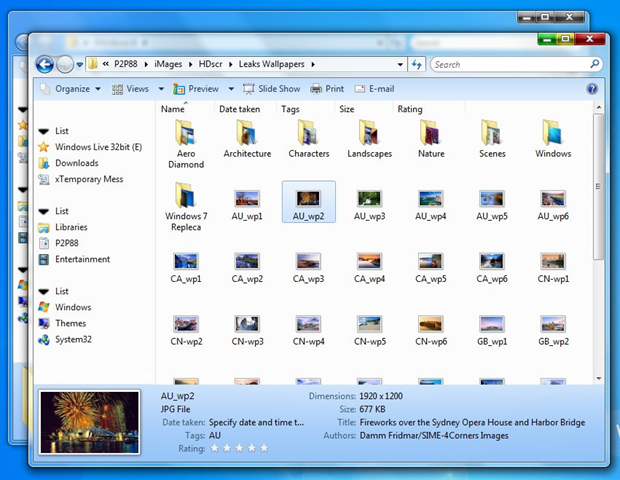
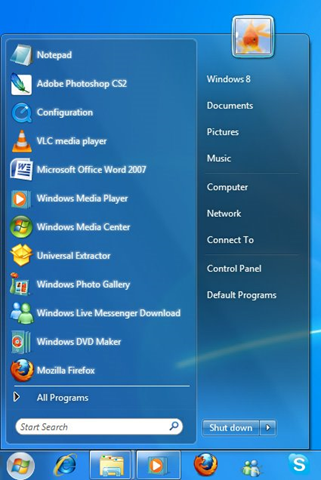
Are you tired of your Windows Vista Look and Feel? Do you want to change the default Vista look and feel in to Windows 8 (yeah not Windows 7) imageWell, look no further. Check this Windows 8 Professional Edition theme that just boosts the appearance of Vista. It has redesigned Login screen, explorer, start menu and much more. Before you install this theme, Do NOT forget to create “System Restore” just in-case something goes wrong.
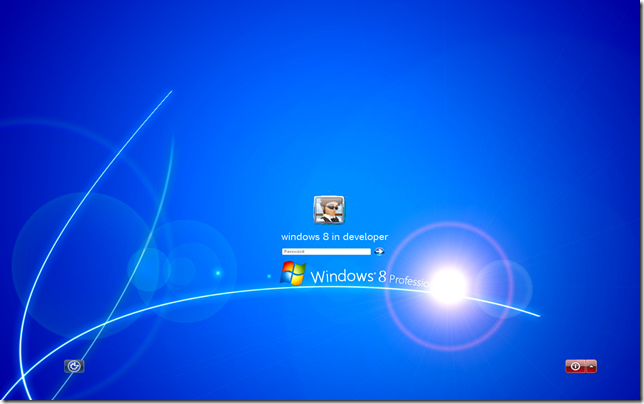
Screenshots:

image

image 

image

image

Installation instructions are here

How to Edit MP3s On Your Android Phone?

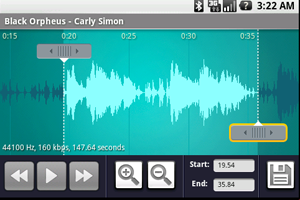
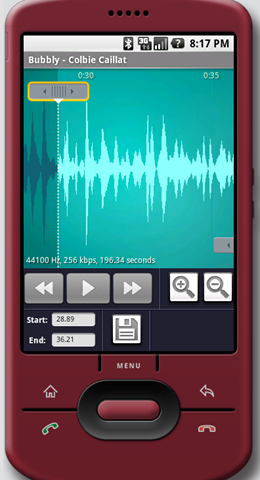
If you would like to edit a music file in MP3 or WAV formats with your Android handset, then you just need to install Rindroid. Its an free Android application for recording and editing sounds, and creating ringtones, directly on the handset.

ringdroid_thumb

First you need to copy the song that you want to edit on to your mobile’s SD card.

1. Connect your handset to the computer using the USB cable supplied. Your handset will appear on your computer just like a flash drive.

2. Copy the MP3 file that you want to edit on to your SD card.

3. Then unmount the drive and disconnect

After you’ve copied songs to your handset, you can edit them using Ringdroid.

4. Open the MP3 file using Ringdroid.

5. View a scrollable waveform representation of the audio file at 5 zoom levels.

6. Set starting and ending points for a clip within the audio file, using an optional touch interface.

7. Play the selected portion of the audio, including an indicator cursor and auto scrolling of the waveform.

8. You can play anywhere else by tapping the screen.

9.Save the clipped audio as a new audio file.

10. You can mark it as Music, Ringtone, Alarm, or Notification.

ringdroid1

You can also use Ringdroid to record a new audio clip on the handset and edit.

Supported file formats are:
  • MP3
  • AAC/MP4 (including unprotected iTunes music)
  • WAV
  • 3GPP/AMR (this is the format used when you record sounds directly on the handset)

Check the Android Market for Ringdroid and download.

Technorati Tags: ,,
del.icio.us Tags: ,,

How to tweak Windows 7? Optimizing Microsoft Windows 7 the most easy way!

Now that the Microsoft Windows 7 is officially released, we will see a whole lot of Desktops and Notebooks with Microsoft Windows 7 preloaded. With its positive reviews, we are sure that Windows 7 would probably be smarter upgrade from Microsoft Windows XP or Vista (unless you are a Apple Mac or Linux geek). image

If you are looking for some nifty small utility to optimize your Windows 7 system, then there is a utility called 7Tweak. It is system optimization and cleanup utility especially designed for Windows 7.

What can 7Tweak do for you?

  • Intelligent Disk Cleaner and Safe Defragmentation tool.
  • Smart hard drives monitoring capability.
  • Registry Backup/Restore, Intelligent RegCleaner and Registry Safe Defragmenter.
  • Security Tweaks: Firewall, IE, Windows Update and many other.
  • Optimization tools: Autorun Manager, StartUp Manager, Cache and Visual Effects tweaks.
  • Outlook Mail Tweaks.
  • Start Menu Tweaks.
  • Media Player Tweaks.
  • Control Panel Tweaks.
  • Internet Explorer.
  • and many other Tweaks…

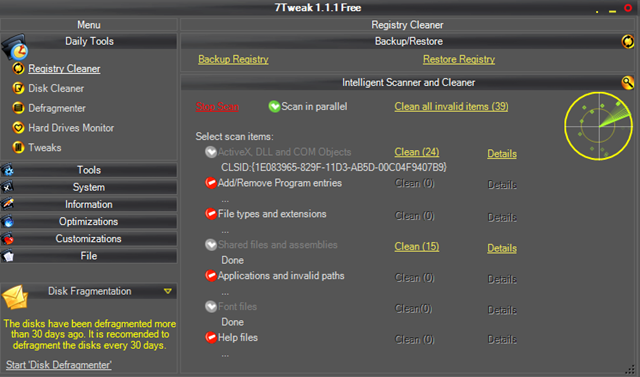
Registry Cleaner

image

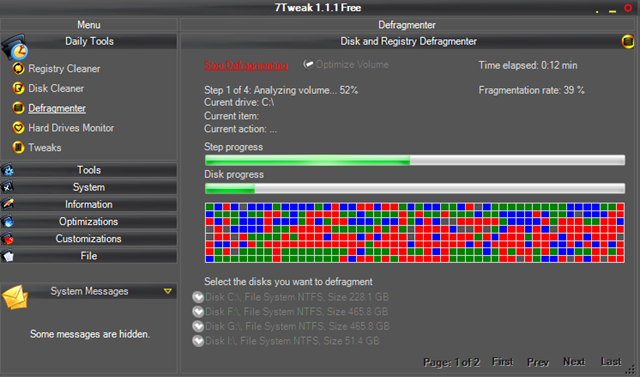
Defragmentation Tool

image

Startup Items Management

image

Tweaks

image

7Tweak is not free bit however, you could try it for 30 days and decide on it. Try it here.

Related Posts with Thumbnails