Well, ACDSee has been around for a long time and it is one of the best Image Viewer and Organizer. ACDSee does support more features but primarily its lightning fast thumbnail generation has been its advantage. However, there are couple of alternatives who are similar to ACDSee and offer good set of features and mostly available for free!
Here is a list of 25 Image Viewers, Editors and Organizers who can be compared with ACDSee. Most of them are free and if you want to use them for commercial purposes, Please do understand their licenses and agreements. Some of them do require license for commercial usage. Home users need not bother much!

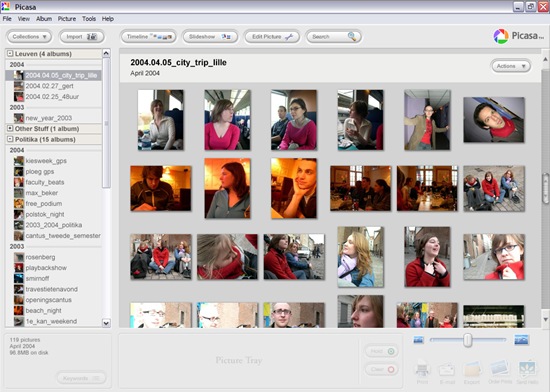
1. Picasa (for Windows, Linux and Mac OS/Freeware)
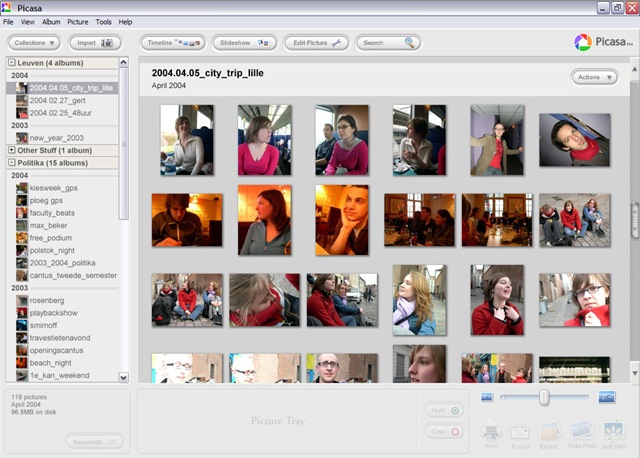
Picasa is an Image Viewer and Organizer from Google. It lets you easily find photos on your computer, tag them, edit them as well as easily share them with your friends online with PicasaWeb. Picasa can create movies, slideshows out of your photo collections with various transitions. Its photo editor is very easy to use and easily lets you enhance your photos, can remove scratches, red eye, apply filters and more. Picasa is quite popular and our choice too.
2. IrfanView (for Windows/Freeware)
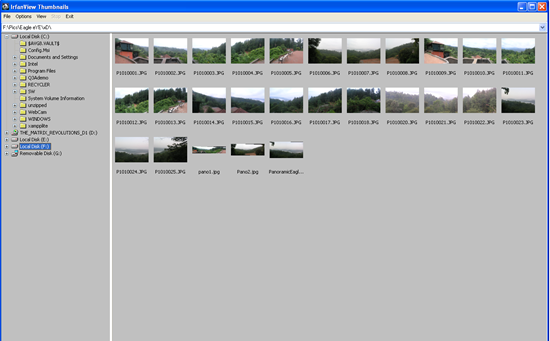
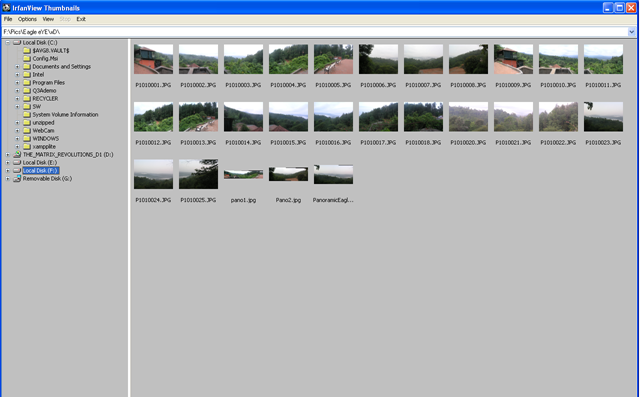
IrfanView is an absolute wonder with its quickness. A very light weight Image viewer and Organizer. It can load images lightning fast and comes with a capable image editing features. It supports a lot of filters and plugins that can do wonders for your photos. Very popular with more than 1 million downloads every month.
3. iPhoto (for Mac OS/Proprietary)
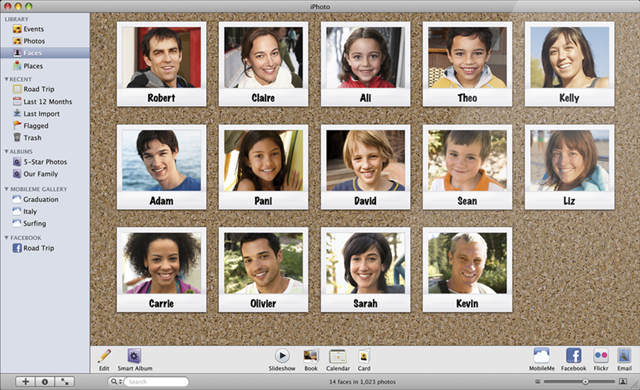
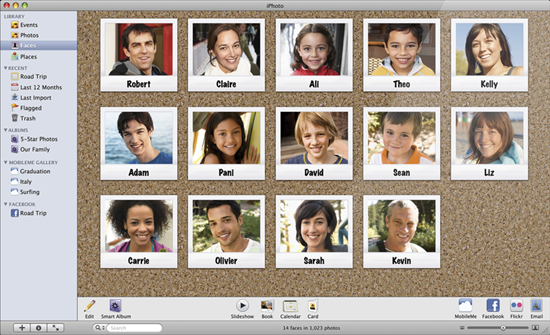
iPhoto makes managing your photos as easy as taking them. It helps you organize your photos so you can find them fast. Edit them so they look their best. And share them with your friends and family. iPhoto is exclusively for their Mac OS X operating system. (Note: We had initially listed Aperture from Apple here, However, based on a comment, we changed it to iPhoto which is more of a Photo Organizer)
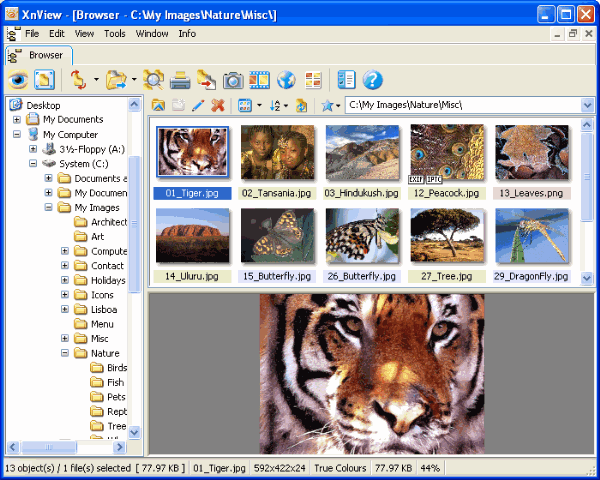
4. XNView (for Windows, Linux, Mac OS and many more/Freeware)
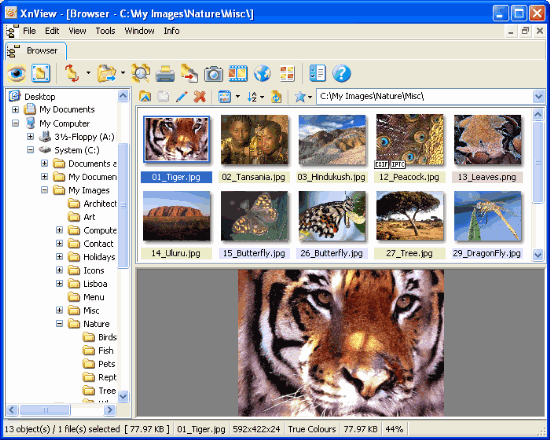
XNView is a utility to view and convert graphics files. It supports more than 400 types of graphics files and is cross platform utility. It is free for non commercial use. XNView is also available for Windows Pocket PC (windows mobile devises). XNView supports filters, lenses, comparing images and many more.
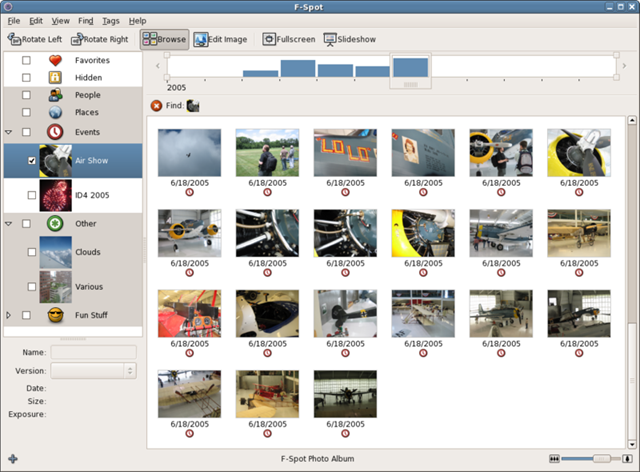
5. F-Spot (for GNOME Desktop/Free and Open Source)
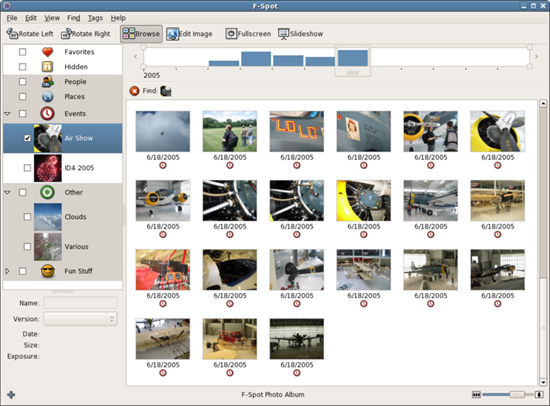
F-spot is a fully featured open source Photo Management software for Linux. It has a very easy to use user interface, thumbnail explorer, photo editor etc. Using F-Spot you will be easily create photo CDs, upload images to Flickr, Picasa etc.
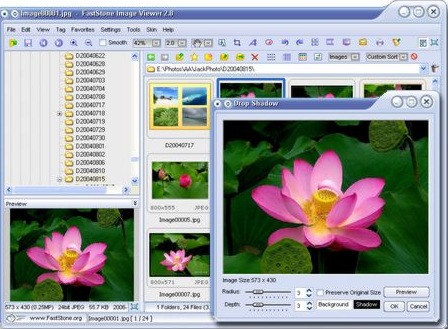
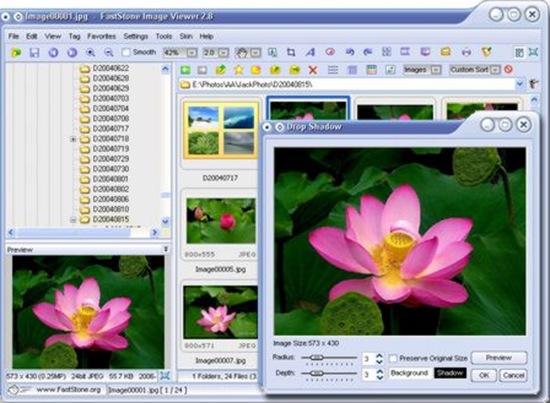
6. FastStone (for Windows/Freeware)
FastStone is an image Viewer, browser, converter and editor. It has a nice set of features that include image viewing, management, comparison, red-eye removal, emailing, resizing, cropping and color adjustments and more.
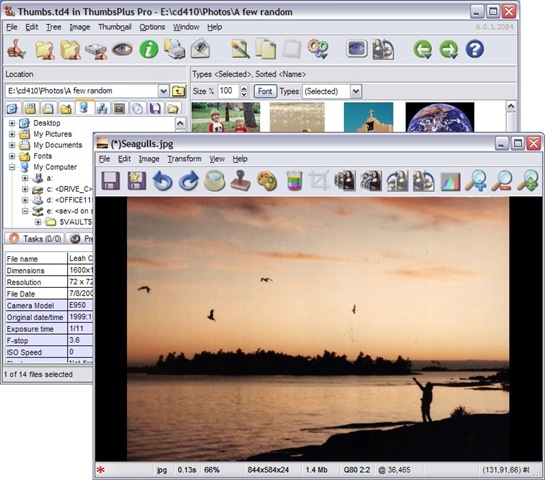
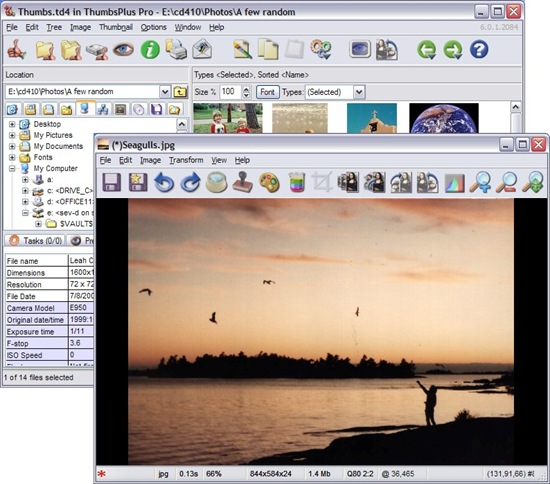
7. ThumbsPlus (for Windows/Commercial)
ThumbsPlus is a commercial Photo Organizer and Editor. It supports Image comparison, filters, color management, borders and many more. ThumbsPlus is not Free but has lots of features to justify the cost.
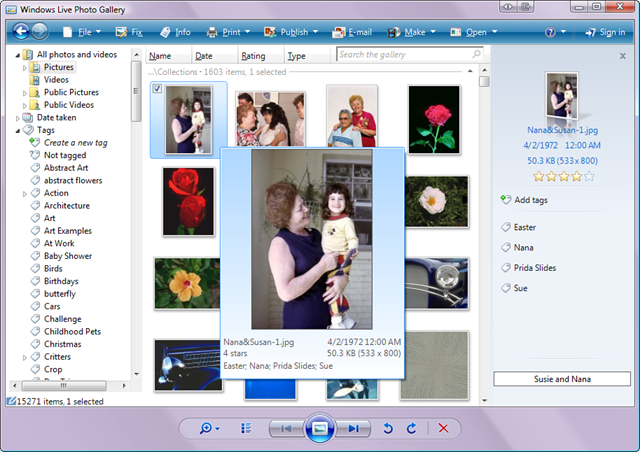
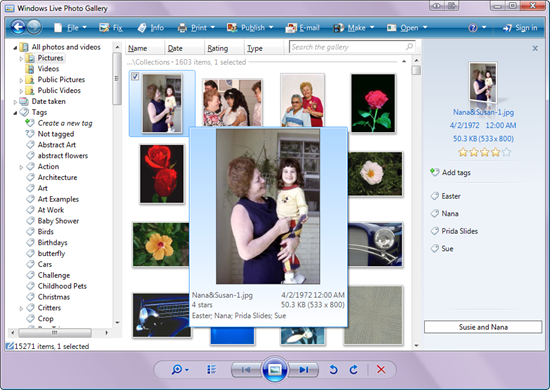
Windows Live Photo Gallery is part of Windows Live Site. It is very easy to acquire images from your camera, organize them on your local drive and uploading it to Windows Live Storage.
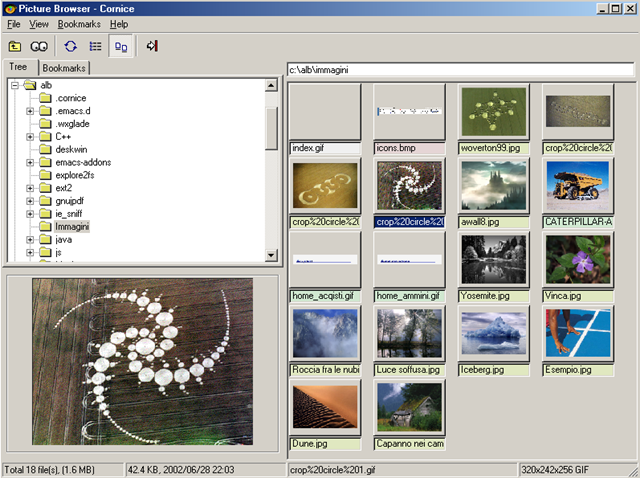
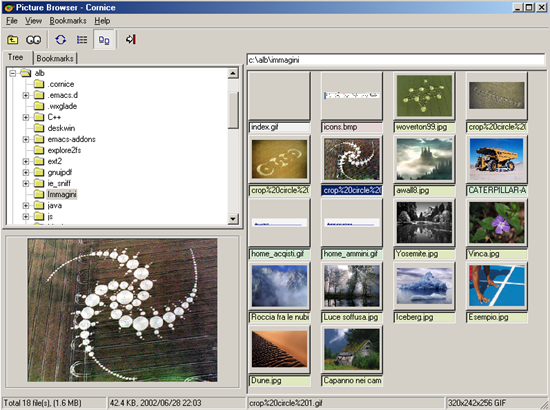
9. Cornice (for Windows, Linux and Mac OS/Free and Open Source)
Cornice is a cross platform open source Image Viewer written by a hobbyist Alberto Griggio (agriggio (at) users.sourceforge.net). It is very nice photo management software and works on Windows, Linux as well as Mac OS.
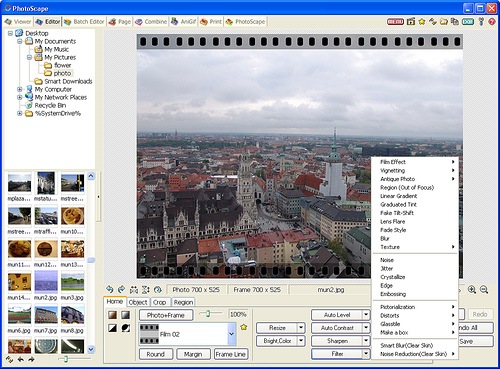
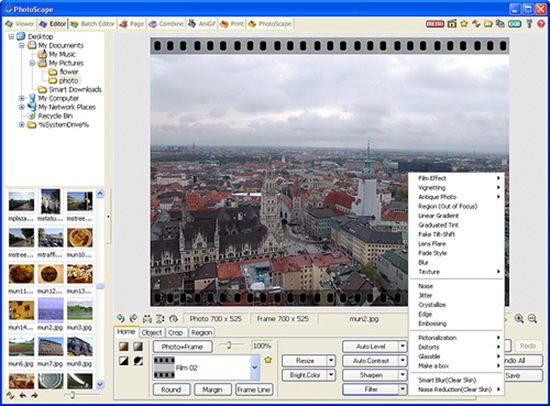
10. Photoscape (for Windows/Freeware)
Photoscape is the fun and easy photo editing software that enables you to fix and enhance photos. It supports image editing features like resizing, brightness and color adjustment, white balance, backlight correction, frames, balloons, mosaic mode, adding text, drawing pictures, cropping, filters, red eye removal, blooming. Besides image editing it lets you organize your images, convert them into other image formats and many more.
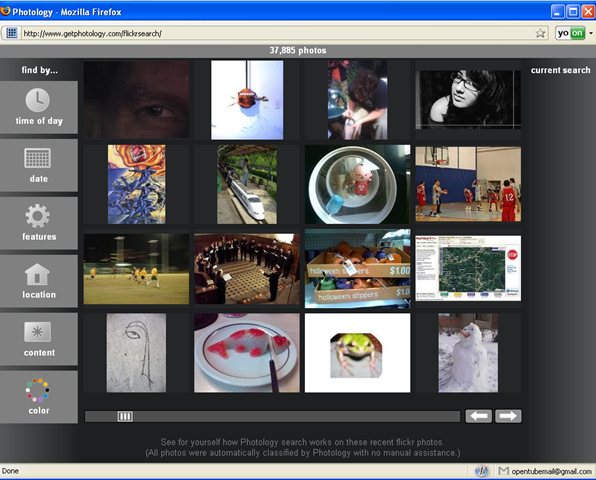
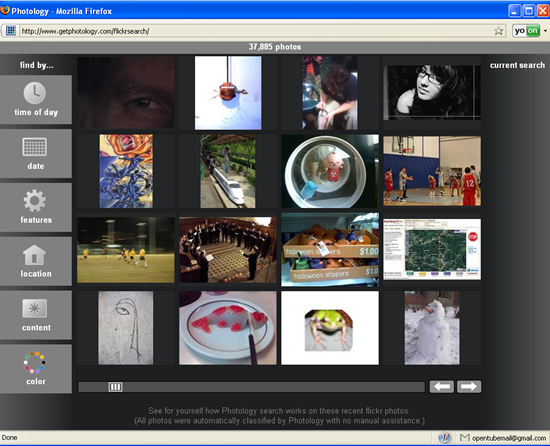
11 Photology (for Windows/Freeware)
Photology helps you navigate the flood of digital photos on your computer by finding photos using simple and intuitive filters like faces, sky, color, location, and time of day. Its easy, fast and fun to manage your photos.
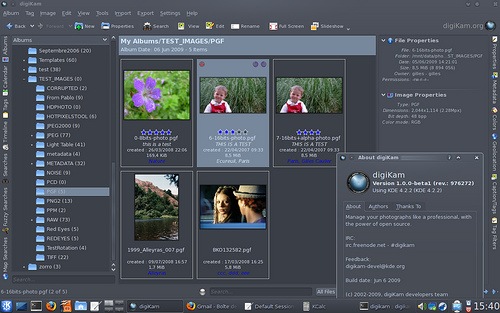
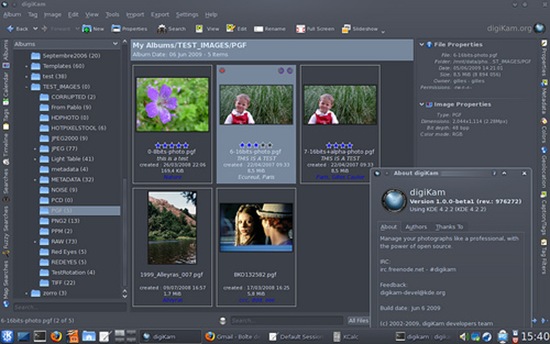
12 digiKam (for Linux, Windows and MAC OS/Free and Open Source)
A competent Open Source Photo Organizer for Linux. Lets you upload photos to Picasa, SmugMug etc, Slideshow support and more.
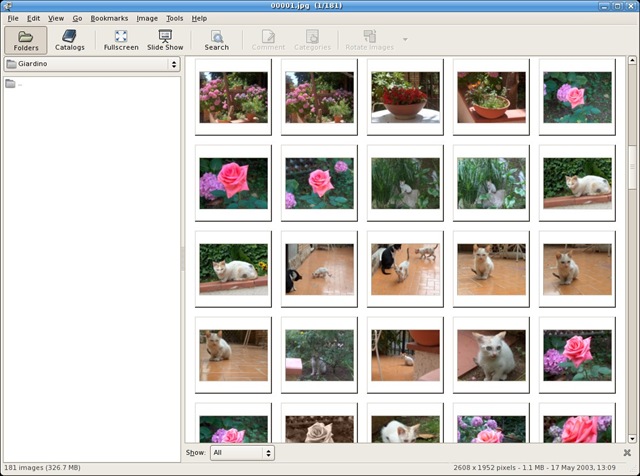
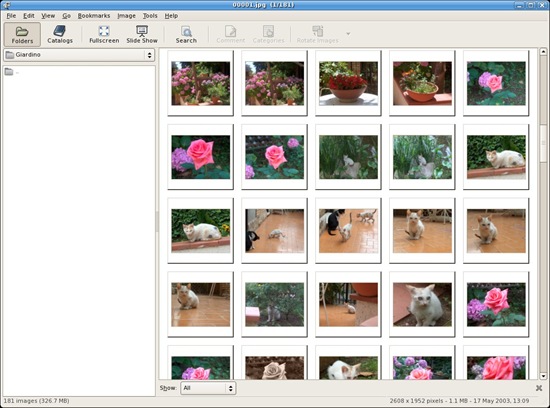
13 GTHUMB (for GNOME/Free and open Source)
gThumb is an image viewer and browser for the GNOME Desktop. It has Image editor and support to create Photo CDs and DVDs. It can create Web albums, find duplicate images and more.
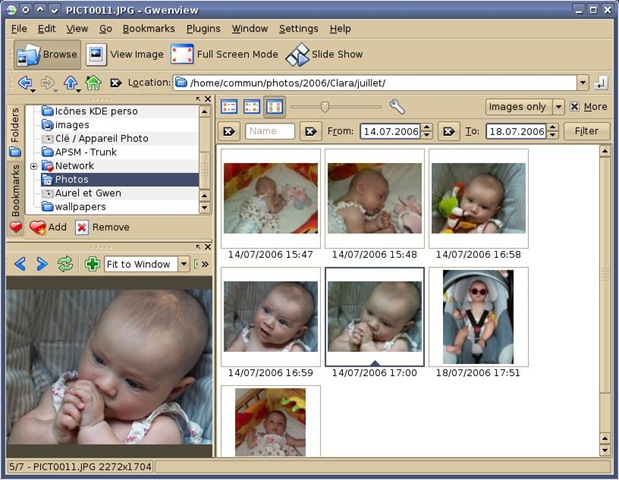
14 Gwenview (for Linux/Free and Open Source)
Gwenview is a fast and easy to use image viewer, editor and organizer for KDE.
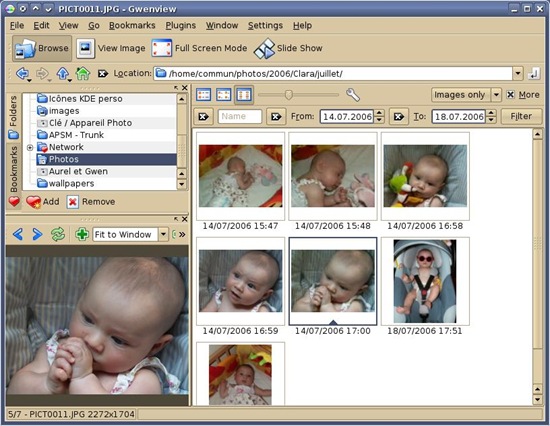
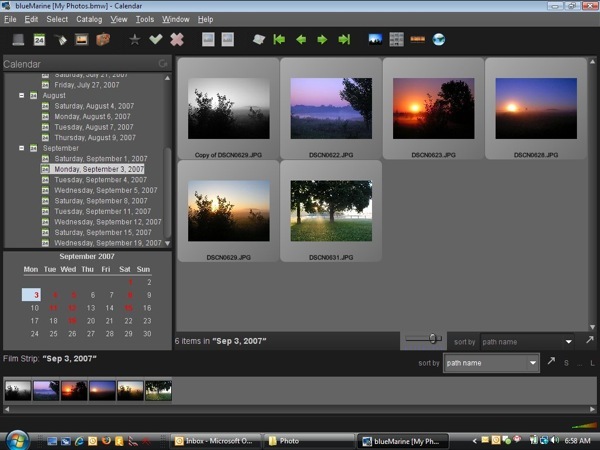
15 BlueMarine (for Windows, Linux and Mac OS/Free and Open Source)
BlueMarine is an open source application for the digital photo workflow, the blueMarine project will provide you an all-in-one tool for managing your photos, from the shoot up to the archiving and beyond. blueMarine is an expandable, open platform and includes specific support for different photographers communities, as well as the latest technologies.
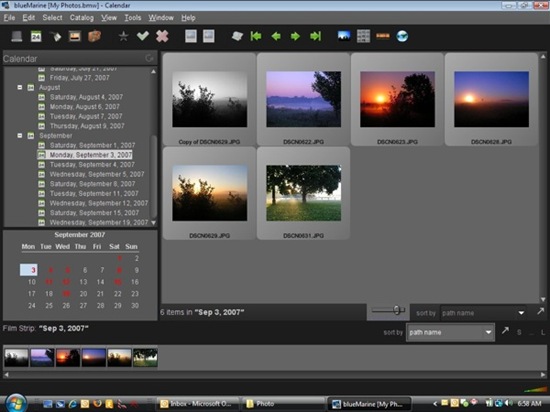
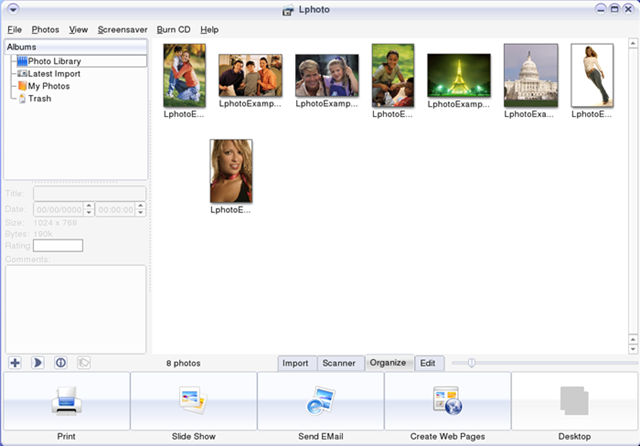
16 Lphoto (for Linux/Free and Open Source)
Lphoto is an open source Photo Organizer, Editor for GNU/Linux. Supports Red Eye removal, Web album/HTML album creation, color enhancements, filters and more.
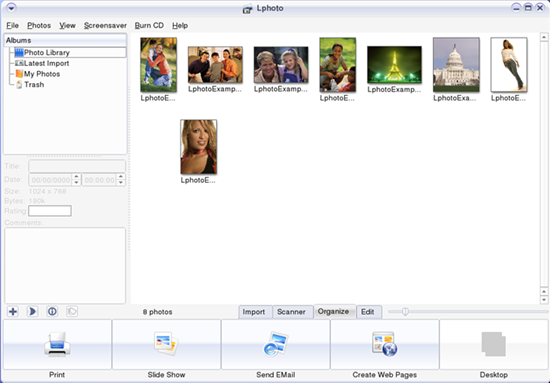
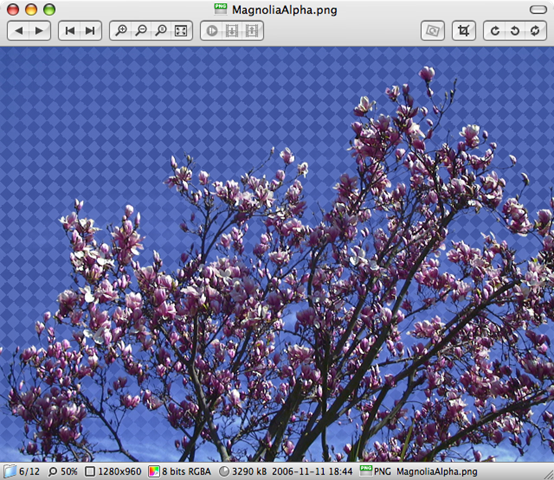
17 Xee Image Browser (for Mac OS/Free and Open Source)
Xee V2.0 is a simple, lightweight Image Viewer and Browser. It can open any files that QuickTime or Preview opens, full screen view, slideshows, EXIF info and much more.
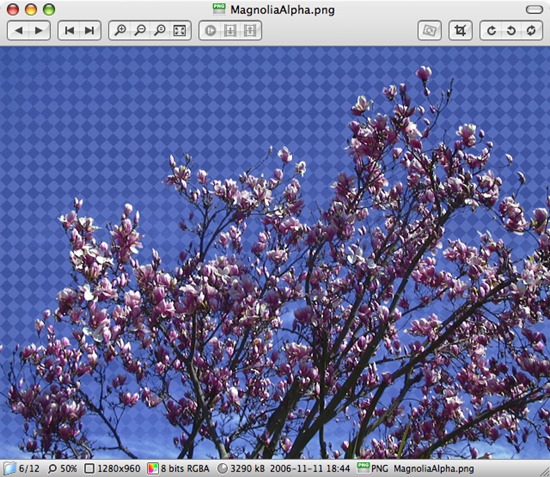
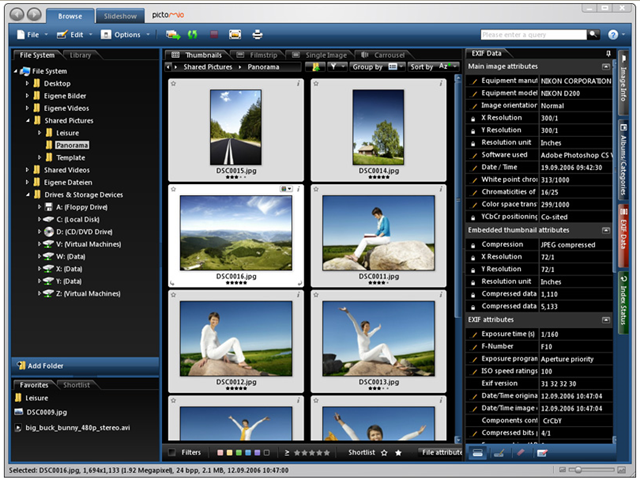
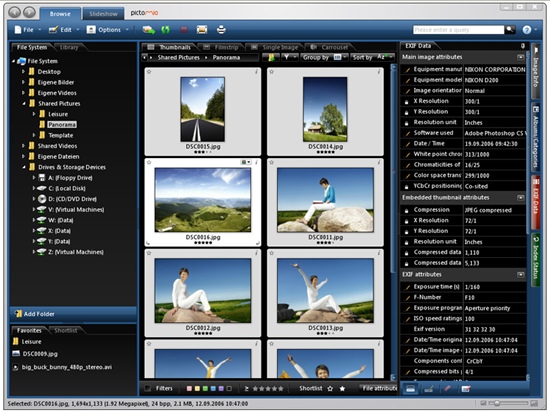
18 Pictomio (for Windows/Freeware)
Pictomio is a software application intended for managing, categorizing, searching, and archiving photos as well as geotagging photos and videos that also allows you to generate animated 2D and 3D slideshows.
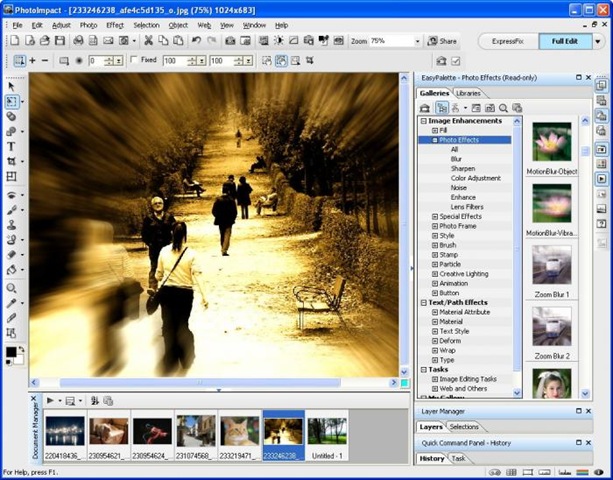
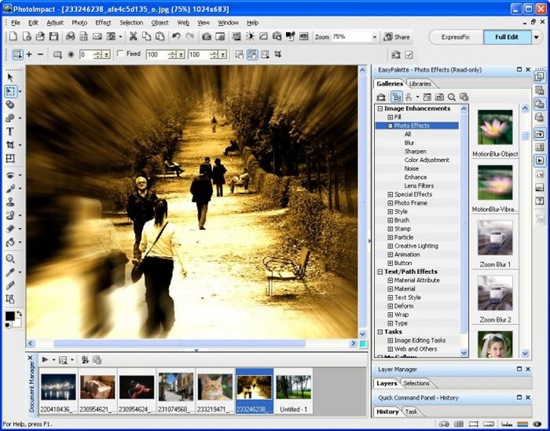
19 Photoimpact (for Windows/Commercial)
Photoimpact is a Corel product that lets you easily create photo projects, organizing and editing your photos. Whether you’re a beginner or it’s your hobby, PhotoImpact X3 will help you create professional-looking graphics for slide shows, videos, DVDs and more.
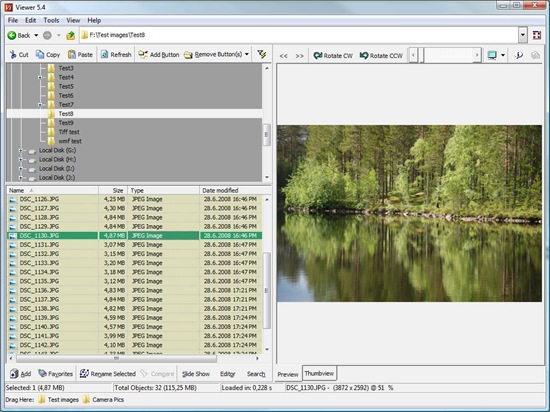
20 WildBit (for Windows/Freeware)
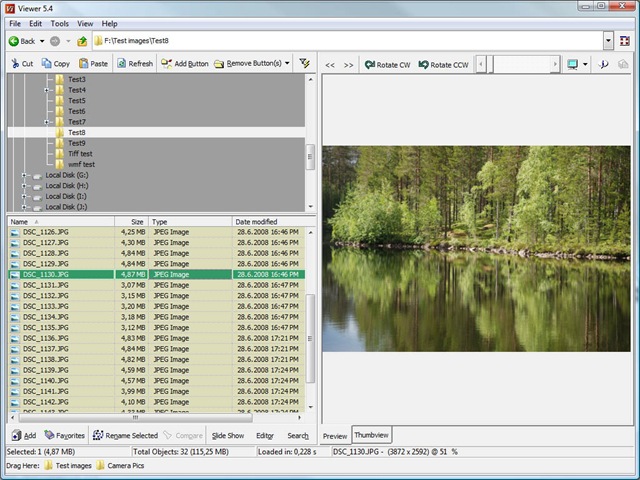
WildBit Viewer is compact and fast Image Viewer with slide show support and image editor. Simple user interface with faster thumbnail creation, fast image loading features. Supports all common graphics files, image comparison and many more.
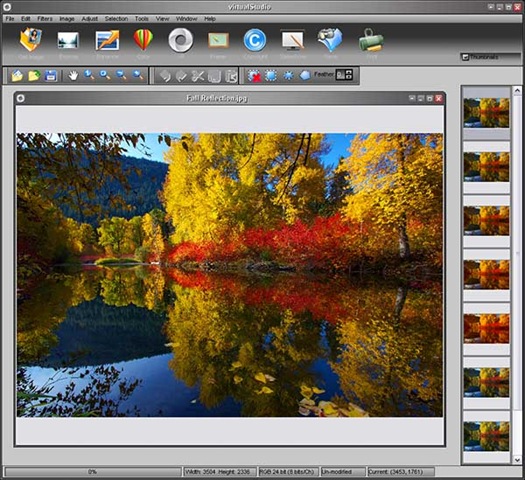
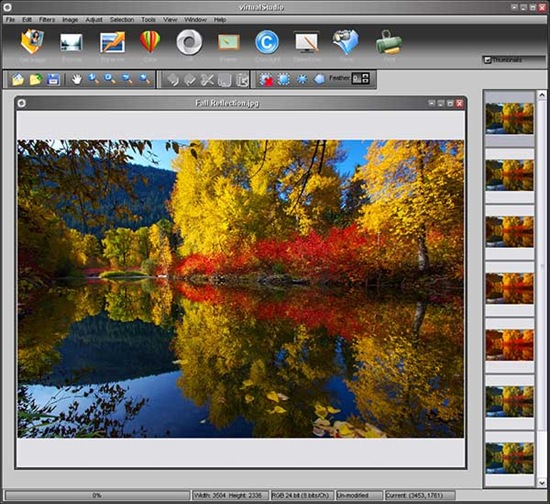
virtualStudio is a stand-alone, full-featured photo editor that can run virtualPhotographer and other plug-in filters. You can quickly and easily retouch and enhance your photos like a professional, using the power of plug-ins. virtualStudio includes all the features you’d expect to find in high quality editing software, and even comes with a selection of picture frames and the ability to add a title and copyright information.
22 ShowImg (for Linux/Free and Open Source)
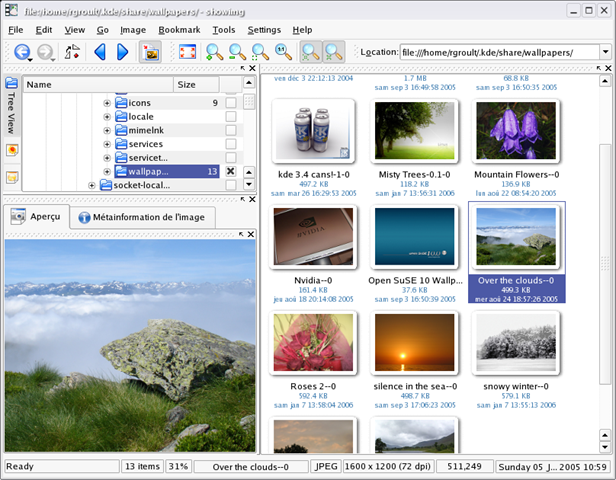
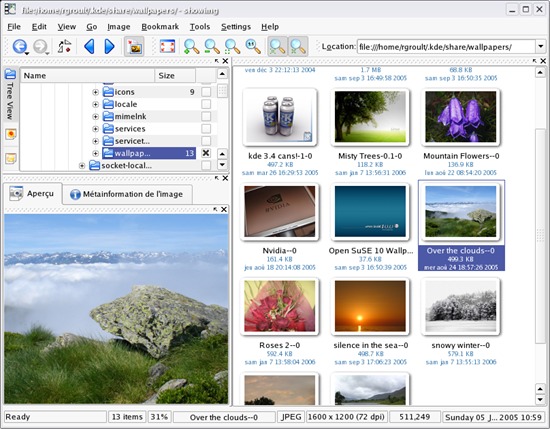
ShowImg is a feature-rich image viewer for KDE including an image management system. It is highly configurable and supports numerous image formats.
23 GQView (for Linux and Windows/Free and Open Source)
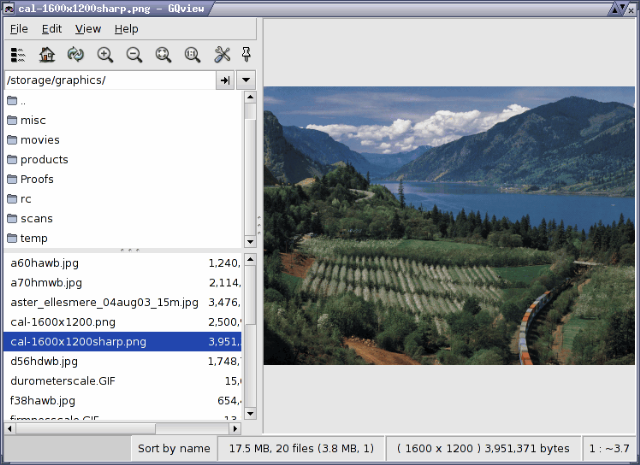
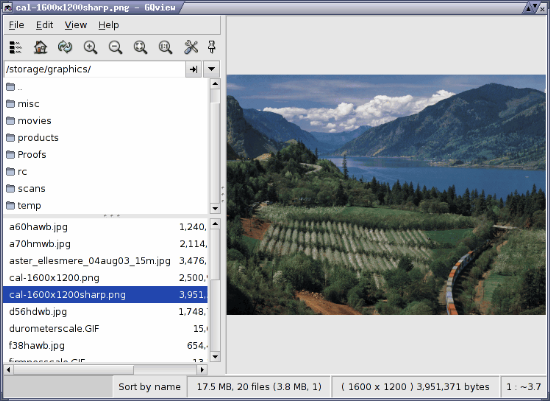
GQview is an image viewer for Unix operating systems (developed on Linux). It’s key features include single click file viewing, external editor support, thumbnail preview, and zoom features. Some image management features are also included.
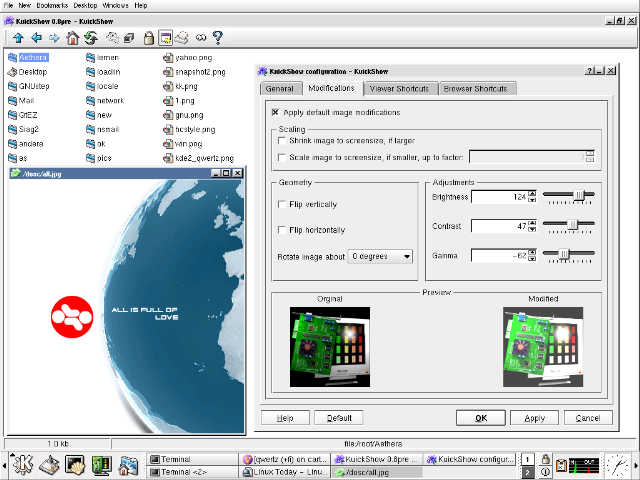
24 KuickShow (for Linux/Free and Open Source)
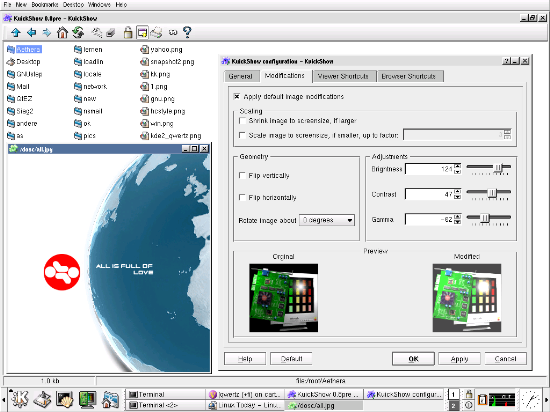
KuickShow is an image browser/viewer with a nice filebrowser to select images to be shown, slideshow support and the ability to display the following image formats: jpg, gif, tiff, png, bmp, psd, xpm, xbm, pbm and eim. Images can be displayed either in their own window, as large as the image, or fullscreen (which shrinks images too large to display). KuickShow also has a slideshow mode.
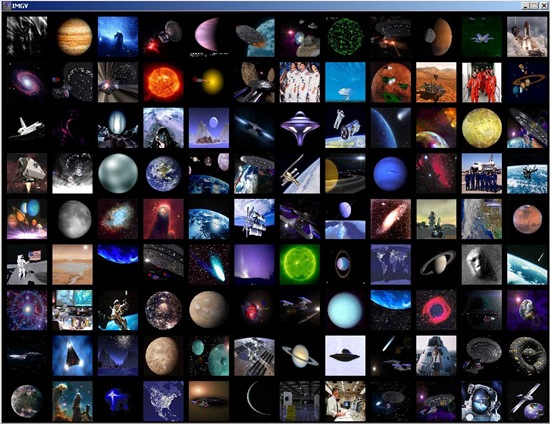
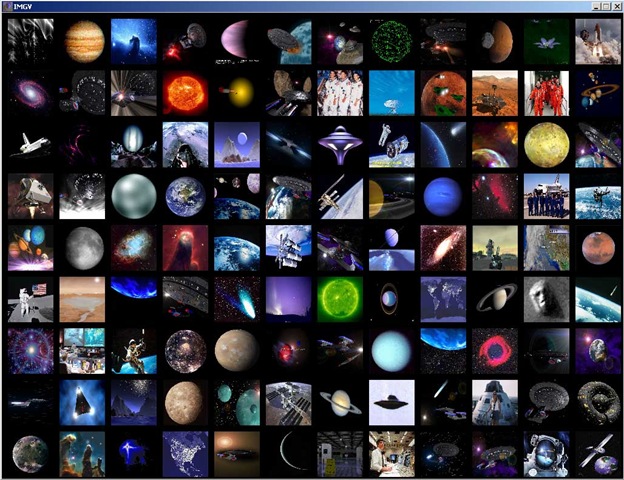
25 Imagv (for Windows, Linux, Mac OS/Free and Open Source)
Imgv is a unique and feature rich Image Viewer. It is released as free software with full source code. Imgv is portable and can run on Windows, Linux, BSD, OSX, and other operating systems. Features include a GUI that doesn’t get in the way of viewing your images, a file browser, slideshows, zooming, rotating, on-the-fly Exif viewing, histograms, fullscreen support, wallpaper setting, the ability to view 4 images on the screen at once, adjustable thumbnail sizes, playlists, view and download images from Web sites, movie playing, file searching/filtering, multiple directory loading, transitional effects, image hiding and more.